
Laptop will not turn on
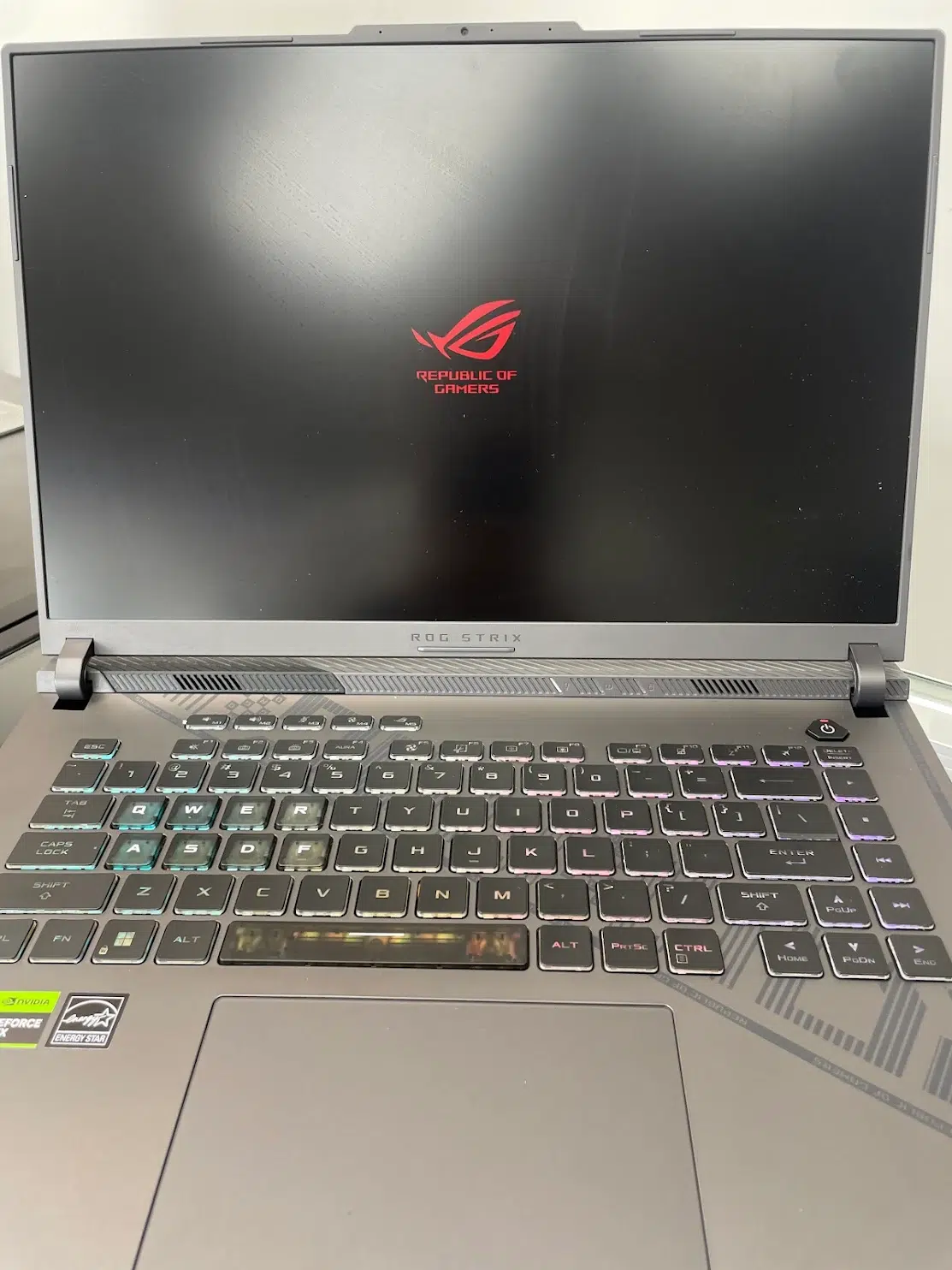
No lights, no fan and no startup response, or you're not sure whether it has power.
Laptop Won’t Turn On →5.0 from 17,000+ Google reviews Free diagnostics • 8 Florida stores • Many repairs same day
Check repair pricingTroubleshooting Guide · Laptop & MacBook
Pick the symptom that matches what your laptop is doing, try the safe first checks, then follow the step-by-step guide for that problem.
Choose your symptom
Each guide walks through safe checks, likely causes and when to get professional help.
No lights, no fan and no startup response, or you're not sure whether it has power.
Laptop Won’t Turn On →The laptop seems to have power, but nothing usable appears on the screen.
Computer Black Screen →Charger not recognized, plugged in but not charging, slow charging or charging only at an angle.
Laptop Not Charging →Vertical or horizontal lines, artifacts, flicker or a display that changes with lid position.
MacBook Screen Lines →Long startup, laggy apps or a laptop that feels much slower than it used to.
Slow Computer →See what our display repair records show, then book a screen replacement if you need one.
Laptop Screen Repair Report →Other problems
Note when it happens — at startup, under heavy use or at random — and whether it's getting worse. That detail speeds up diagnosis.
A swollen battery is a safety issue: stop using and charging the laptop, and bring it in.
Laptop Battery Replacement →Power the laptop off, unplug it and don't keep turning it on to test it. The sooner it's cleaned, the better the outcome.
Hinge, keyboard, overheating and more in our Laptop & Computer research hub.
Open the research hub →Five-minute safe check
Note lights, fan sound, the charging indicator, screen behavior and when the problem starts.
Remove docks, USB devices and other peripherals that aren't needed to test the problem.
If the laptop is stable and there's no liquid, heat or swelling, a normal restart gives you a clean comparison point.
Swelling, a burning smell, smoke, scorch marks, liquid exposure or abnormal heat mean you should stop testing.
Based on real repairs
Laptop problems that look alike often have different causes. A black screen can be power, startup or the display, and “not charging” can be the charger, the port or the battery. Starting with the exact symptom avoids paying for the wrong part.
FAQ
Laptop troubleshooting
If the problem is unsafe, follows a spill or puts important data at risk, stop testing and bring it in for a free diagnostic.